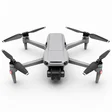
Fly App - Go for Drone Models
Drone AppPhotography
4.5181.00 Reviews
- Version
- 2.6.9
- Installs
- 500.00K
- Age Rating
- Everyone
Screenshots
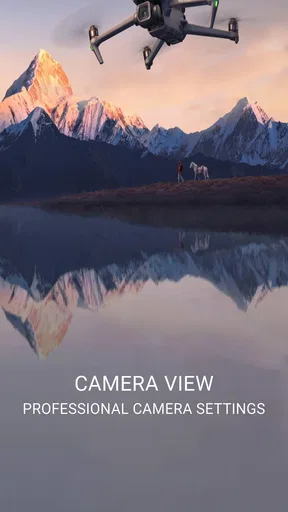

Our Review of Fly App - Go for Drone Models
 Analysis by Appyee
I look at a drone-control app differently from a casual photo editor: it sits between a pilot and a flying device, so trust and careful checking matter as much as a tidy screen. Fly App is a photography app from Drone App, aimed at people using a range of Mavic, Mini, Phantom, Matrice and other supported drone models. It is free to install, though in-app purchases are offered, and it has an Everyone age rating. Its 4.3 average from around 7,600 ratings and more than 500,000 installs suggest that plenty of people have tried it, but those figures alone don’t tell me whether it is right for a particular aircraft or outing.
Start with compatibility, not the launch button
The practical first question is whether the app supports your exact drone and the way you intend to control it. The model families named for Fly App cover several kinds of aircraft, but a family name is not a guarantee that every model, controller, or operating setup will behave the same way. Before taking off, I would confirm the precise model is supported and make a short, low-risk test in an open area. That small check is more useful than assuming that a familiar name means a complete match.
The app is on version 2.6.5 and requires Android 6.0 or later. It was released on May 12, 2024. Those details are useful when checking whether an older phone can install it, but installation is only the first hurdle: a device that runs the app may still be a poor flight companion if its battery is low, its screen is hard to read outdoors, or it is already busy with other tasks. I would set up the phone and verify the connection before reaching the flying spot.
Trust means checking what you can see
For a flight app, I pay attention to the choices and prompts I can inspect rather than assuming what happens behind the scenes. Read the permission requests as they appear, and consider whether each one makes sense for the task you are trying to do. If the app asks for access that you do not want to grant, pause and decide whether you are comfortable proceeding; do not treat a permission prompt as a routine button to dismiss.
It is also worth checking the purchase screen before committing to anything. Fly App is free to install, with in-app purchases listed at $9.99 to $39.99 per item. I would look at the exact item, price and terms displayed in the app, then decide whether it solves a need I actually have. A paid option is not automatically necessary for basic exploration, and I would avoid buying anything while distracted at a launch site.
Keep sensitive moments deliberate
Flying can involve a live view, location-related information and footage of places or people. I treat that as a reason to plan where I point the camera, not just as a technical issue. Before recording, I check the surroundings, avoid capturing people unnecessarily, and keep an eye on local flight restrictions. A map or warning in an app can be useful, but it should not replace checking current rules and the conditions at the actual site.
On a first outing, I would keep the workflow simple: connect on the ground, inspect the controls, confirm the aircraft responds as expected, and only then fly. If a prompt, connection change or setting is unclear, landing before investigating is safer than trying to troubleshoot while the drone is airborne. That is especially important when using a phone that also handles calls, notifications and other apps.
Who will get the most from it?
Fly App is most appealing to drone owners who want to try one control app across supported models and are comfortable checking compatibility and settings for themselves. Beginners may value having controls and flight information in one place, but I would not treat any app as a substitute for learning the aircraft, practising basic manoeuvres and understanding safe flying. More experienced pilots may appreciate a single interface, while still preferring their usual controller or manufacturer app if it offers a workflow they know well.
If you fly only occasionally, use a drone that is not supported, or prefer a highly familiar manufacturer-specific setup, another option may be the better fit. I would also skip a first test in a crowded, windy or unfamiliar location. A drone app cannot make a risky location suitable, and a broad list of model families does not remove the need to verify the exact pairing.
Getting Started with Fly App
First things first, downloading the Fly App is a breeze. Available on both Android and iOS, it’s just a quick search in the app store, and you’re good to go. Once installed, the interface is super friendly. Even if you’re not tech-savvy, navigating through the app feels intuitive. The design is sleek and doesn’t bombard you with unnecessary clutter. It’s like they knew exactly what we drone lovers needed!
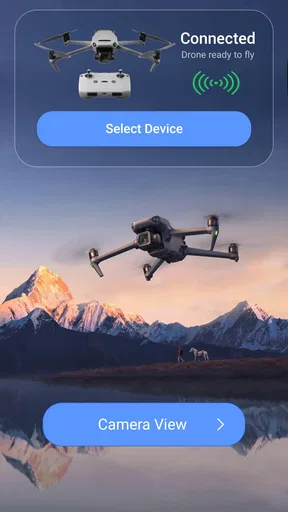
Upon opening the app, you’re greeted with a simple dashboard. Here, you can connect your drone model, check for firmware updates, and explore various flight settings. It’s like the command center for all your drone adventures.
Features That Soar
Now, onto the features, because let’s be real, that’s what we’re here for. The app offers an array of functionalities that are both beginner-friendly and advanced enough for seasoned flyers.
- Flight Modes: One of the standout features is the range of flight modes. Whether you’re looking for a smooth cinematic shot or a quick race, the app has got you covered. Just switch modes, and you’re off!
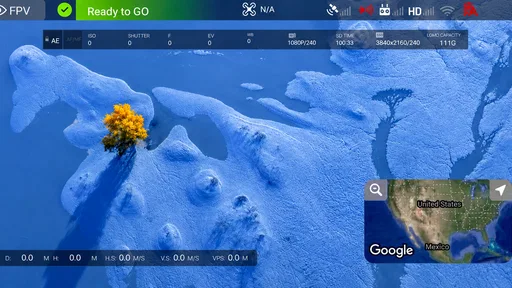
- Live Map: The live map feature is a game-changer. It provides a real-time map of your drone's location, so you never lose track of where it’s flying. Plus, it marks out no-fly zones, which is super handy.
- Camera Controls: The level of control you have over your drone’s camera is phenomenal. Adjusting exposure, white balance, and other settings is just a tap away. It’s like having a full-fledged camera crew in your pocket.
- Flight Logs: Keeping track of your flights is important, and the app logs all your flights automatically. You can review them anytime, which is great for both bragging rights and improving your skills.
Flying Experience
Now, let’s talk about how the app enhances the actual flying experience. Connecting your drone is straightforward, with no complicated setups. Once connected, the app’s responsiveness is spot-on. There’s minimal lag, which gives you a seamless flying experience. It’s like the app becomes an extension of your drone.
On top of that, the app offers tutorials and tips, which are fantastic for beginners. Even if you’ve never flown a drone before, these guides will have you feeling like a pro in no time. It’s like having a personal drone instructor right in your phone.
Use it as part of a considered flight routine
For a useful everyday test, imagine heading to a quiet field after work to film a landscape before the light changes. I would check the aircraft and phone at home, then use the map and controls on site to orient myself and frame a shot. After landing, flight logs can help me recall what I tried, while camera adjustments make it easier to compare a new composition with an earlier one. The value here is not just having many controls: it is keeping piloting and image-making close together, so I can make a deliberate adjustment instead of juggling separate tools.
A less obvious benefit of that combined workflow is that it encourages a repeatable setup. If I am testing exposure or white balance, I would change one setting at a time and note the result after the flight rather than altering several controls mid-air. That makes comparisons more meaningful and leaves more attention for the aircraft. For a short social clip, quick access to camera settings can be handy; for a carefully planned shoot, I would still decide the framing and flight path before takeoff rather than relying on on-the-spot improvisation.
Against the usual alternatives, Fly App’s appeal is the prospect of one interface for supported drones, rather than switching between a separate flight tool and a camera workflow. That convenience has a trade-off: a manufacturer’s own app may be the more sensible choice when you want the familiar controls and model-specific routine you already know. I would not switch in the middle of a project just to try a different interface. Test Fly App on an uncomplicated flight first, then judge whether its layout suits your habits.
Make the phone part of the preflight check
One practical tip is to treat the phone as flight equipment, not just a screen. Before leaving, charge it, close distractions you do not need, and make sure you can read the display outdoors. At the site, keep the phone steady and avoid digging through menus while the drone is moving. If a camera adjustment takes more attention than you can spare, land first. This is a small change in routine, but it can prevent a photo task from taking focus away from safe control.
I would also use a new setting or mode in a low-pressure session before depending on it for a particular shot. A smooth cinematic pass and a quick manoeuvre call for different expectations; selecting a mode is not the same as understanding how the aircraft will respond. Practising the intended movement at a safe distance helps reveal whether the controls feel natural to you. The app can put options within reach, but the pilot still needs to judge the surroundings and the aircraft’s behaviour.
Battery and Safety Concerns
Battery life is always a concern with drones, but the Fly App does a great job of keeping you informed. It provides real-time battery status, and even alerts you when it’s time to bring your drone back. Safety is clearly a priority here.
Additionally, the app's built-in safety features, like return-to-home and emergency stop, add a layer of security that every drone pilot needs. It’s like having a safety net, ensuring both your drone and its surroundings are always protected.
Useful safeguards still have limits
I would treat battery indicators and return functions as prompts to act early, not as permission to stretch a flight. Wind, distance, obstacles and the return route all affect how much reserve feels sensible. A warning is most useful when I have already left enough time and battery to respond calmly. Before relying on a safety control, I would learn what it does on my exact aircraft and check the relevant settings on the ground.
There is also a difference between a useful aid and a guarantee. A map can draw attention to restricted areas, but I would verify current flight rules independently and avoid taking off if conditions or boundaries are uncertain. Likewise, an emergency control is not a substitute for maintaining a clear view and choosing a safe place to fly. These checks may feel cautious, but they matter more than squeezing in one extra pass for a shot.
Questions worth settling before your first flight
If you are wondering whether you need to pay to try the app, it is free to install, while optional in-app purchases are offered. I would inspect each purchase in context and only pay if its purpose is clear to me. If you are unsure whether your drone works with it, confirm the exact model and connection arrangement before travelling to fly; the named model families are a starting point, not a reason to assume every variant is covered.
For a beginner, the short answer is that an approachable interface and tutorials can make the first steps less intimidating, but they do not replace practice or safe-flight knowledge. If you are choosing between this and your usual control app, try the alternative only when you have time for a calm test and can return to your familiar setup. That way, a learning curve does not become a problem during a shoot that matters.
Final Takeaway
All in all, the Fly App is a must-have for anyone serious about their drone flying experience. It packs a punch with features that cater to both novices and experts alike. Whether it’s the intuitive interface, the comprehensive flight modes, or the safety features, this app has it all.
If you’re looking to elevate your drone game, this app is definitely worth checking out. It’s not just an app; it’s your co-pilot in the sky, ensuring every flight is as exhilarating as the last. So next time you’re ready for a new drone adventure, make sure the Fly App is your wingman!
My cautious recommendation
I would recommend giving Fly App a measured try if your exact drone is supported and you want camera controls, flight information and logs together. Its broad model focus and free installation make it easy to consider, while the optional purchases mean it is sensible to check costs before tapping through. My advice is to begin with a brief test in a familiar, open place, review the controls and permissions at your own pace, and keep your usual option available until the new workflow has earned your confidence.
For pilots who value a proven, model-specific routine above experimentation, staying with the app they already know may be wiser. For someone curious about a consolidated control experience, Fly App has enough to explore, provided compatibility and safety checks come first. I see it as a candidate to test, not a reason to skip preflight judgment: the best choice is the one that lets you fly attentively and bring home the shot without making the app itself the focus.
Verdict
Strengths of Fly App - Go for Drone Models
- Intuitive user interface design.
- Comprehensive drone control features.
- Real-time GPS tracking included.
- Customizable flight paths.
- Supports various drone models.
Limitations of Fly App - Go for Drone Models
- High battery consumption rate.
- Infrequent software updates.
- Limited offline functionality.
- Occasional connectivity issues.
- Requires high-end device specs.
Similar Picks in This Category
View All
Google Photos
Google LLC4.4

Gallery
Google LLC4.2

Picsart AI Photo Editor, Video
PicsArt, Inc.3.9

B612 AI Photo&Video Editor
SNOW Corporation4.1

BeautyPlus-Selfie Photo Editor
PIXOCIAL TECHNOLOGY (SINGAPORE) PTE. LTD.4.5

Remini - AI Photo Enhancer
Bending Spoons4.1
Frequently Asked Questions
What are the key features of the Fly App - Go for Drone models?
The Fly App offers a comprehensive suite of features designed for drone enthusiasts. Key features include real-time flight data, advanced camera controls, customizable flight paths, and an integrated editing suite for captured footage. It also supports various drone models and offers a user-friendly interface for both beginners and experienced pilots.
Is the Fly App compatible with my drone model?
The Fly App supports a wide range of popular drone models, but it’s crucial to check the compatibility list on the app’s official website or within the app store description. Compatibility may vary depending on firmware updates and specific drone configurations, so ensure your drone is listed before downloading.
Does Fly App - Go for Drone models offer offline functionality?
While many features of the Fly App require an internet connection, such as live streaming and map updates, certain functions like basic flight controls and local video storage are available offline. However, for an optimal experience, an internet connection is recommended to access all features and updates.
What are the system requirements for installing the Fly App?
To install the Fly App, ensure your device meets the minimum operating system requirements: iOS 12.0 or later for Apple devices and Android 8.0 or later for Android devices. Additionally, a device with a GPS and a reliable internet connection is recommended for the best performance and functionality.
How secure is the Fly App in terms of data privacy?
The Fly App prioritizes user privacy and data security. It employs encryption for data transmission and offers user consent options for data sharing. Always review the app’s privacy policy to understand how your data will be used and ensure you are comfortable with their practices before using the app.
